
top command and options

Back to performance measurement commands

The top program provides a dynamic real-time view of a running system.  It can display system summary information as well as a list of processes or threads currently being managed by the Linux kernel.

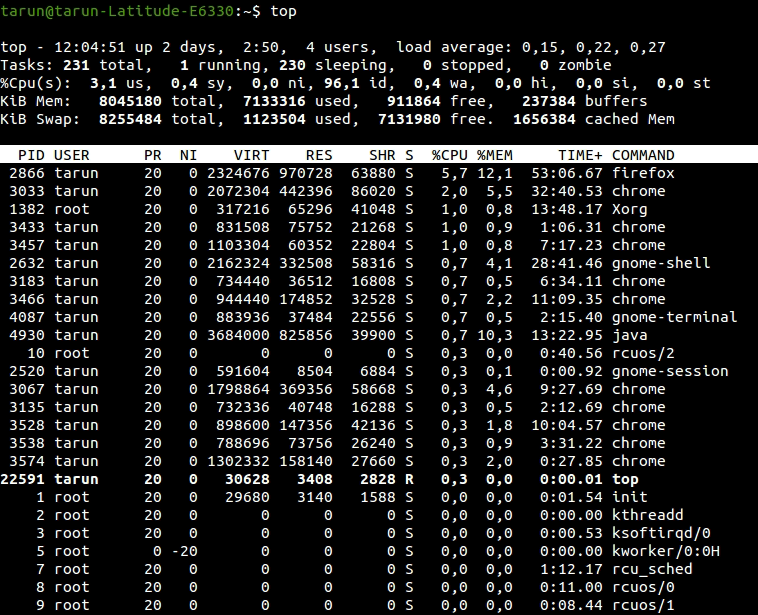
Type the following command:

$ top
top.png

The top command used to display all the running and active real-time processes in ordered list and updates it regularly. Press ‘c‘ option in running top command, it will display absolute path of running process.
If you want to kill a running process then use kill command as - {kill -9 <process-id>}

Press (Shift+W) to save the running top command results under /root/.toprc.

OPTIONS

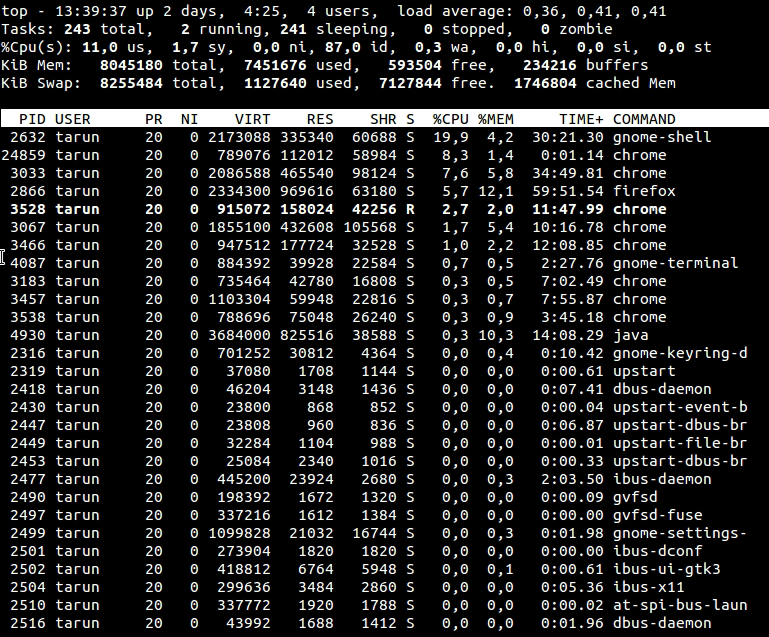
-u | -U  :User-filter-mode as:  -u | -U number or name
Display only processes with a user id or user name matching that given.  The '-u' option matches on  effective user whereas  the  '-U' option matches on any user (real, effective, saved, or filesystem).

Prepending  an  exclamation point ('!') to the user id or name instructs top to display only processes with users not matching the one provided.

$ top -u tarun

replace tarun with your username ;-)
top.png


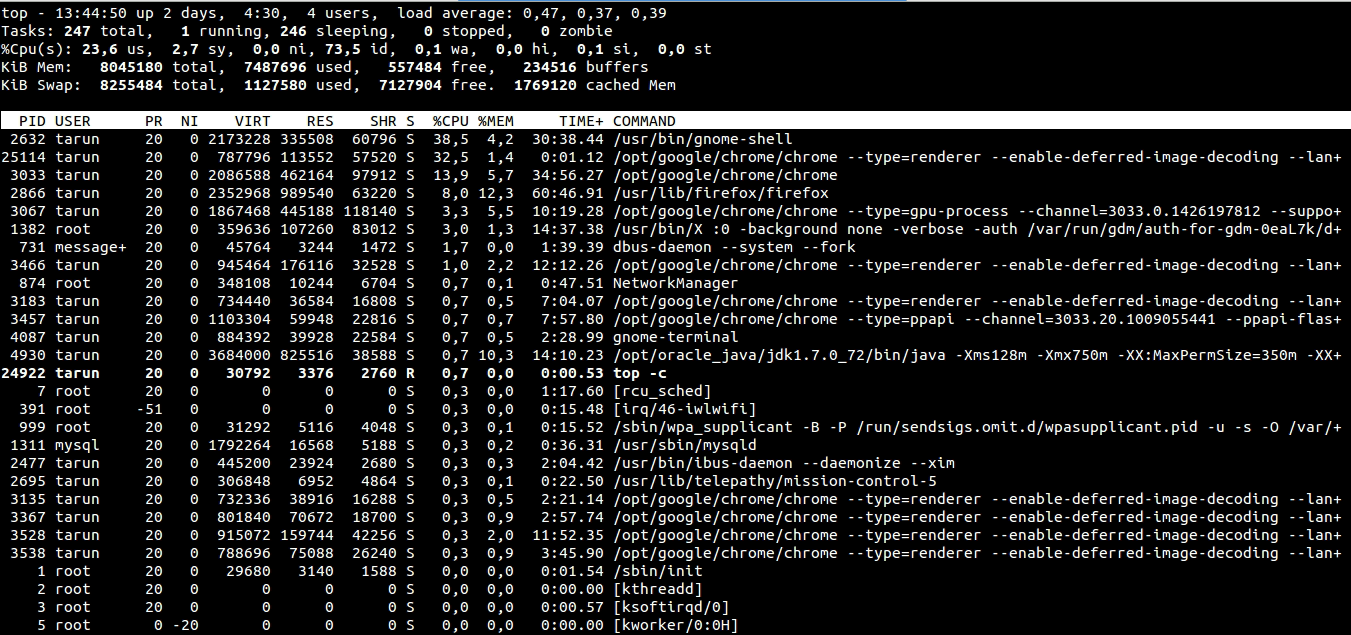
-c  :Command-line/Program-name toggle Starts top with the last remembered 'c' state reversed. Thus, if top was displaying command lines, now that field will show program        names, and visa versa. See the 'c' interactive command for additional information. You can use this command to display absolute path of running process.


        $ top -u tarun
        top.png

-d  :Delay-time interval as: -d ss.t (secs.tenths) Specifies the delay between screen updates, and overrides the corresponding value in one's personal configuration file or the startup default.

        $ top -d 1

        No screen capture, try it yourself ;-)

Popular posts from this blog

Which location strategy to use with mobile apps

Locator Strategy for native mobile apps IDs and accessibility locators are still king. NSPredicate (iOS) and UIAutomator (Android) are great—mainly better than XPath —but they do not beat a good accessibility id or resource-id . And CSS selectors don’t exist for native apps (only for WebViews). Locator Strategy Ranking Rank iOS (native) Android (native) Why 1 Accessibility ID → name / label (via MobileBy.AccessibilityId or @iOSXCUITFindBy(accessibility = "Mehr anzeigen") ) Accessibility ID → content-desc (via MobileBy.AccessibilityId ) or @AndroidFindBy(accessibility = "Letzte Aktivitäten, Überschrift") ) Fast, readable, stable when set intentionally; improves a11y. 2 Stable identifiers (rare on iOS) resource-id (via new UiSelector().resourceId(...) ) or @AndroidFindBy(id = "load_more") id is just shorthand for matching the native Android resource-id attribute. Appium automatically maps id → resource-id If you pass only "load_more"...

Verify email confirmation using Selenium

Note: If you are new to java and selenium then start with selenium java training videos .     Email confirmation seems to be integral part of any registration process. I came across an application which lets you provide your email address. You can follow the sign up link in you mail and then complete the registration process. Lets consider we provide GMail address for it. Now if were to use only Selenium then we would have to follow following steps - Launch GMail using Selenium; Some how search for new mail in the list of available mails; Some how click on it; Parse the mail message; Get the registration link; Follow up with registration process What do you think of an approach in which you can

Selenium Tutorial: Get attribute of an element

With Selenium 1.0 Let us consider Google Search Box for example and its "max length"is to be retrieved. Using xPath -         String var = selenium.getAttribute("//input[@name='q']/@maxlength");         System.out.println(var); Using css locator -                        String var = selenium.getAttribute("css=input[name='q']@maxlength");         System.out.println(var);        With Selenium 2.0 (WebDriver)        Using xPath -         String var = webDriver.findElement(By.xpath("//input[@name='q']")).getAttribute("maxlength")         System.out.println(var); Using css locator -                     ...